- A+
Introduction
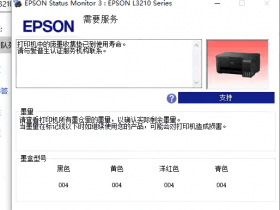
The Epson R330 printer is a popular choice for both personal and professional use due to its high-quality printing capabilities. However, like all electronic devices, it may encounter errors such as ink pad full, ink waste, or service required over time. In this guide, we'll take a look at how to reset the Epson R330 printer quickly and easily.
Resetting the Epson R330 Printer
Resetting the Epson R330 printer involves a tweaking process that clears any errors that the printer may encounter. Here is how to reset your Epson R330 printer:
Download the Epson R330 resetter tool from the official Epson website or trustworthy third-party websites.
Extract the zip archive to run the reset tool.
Disable your printer's antivirus software and firewall temporarily to avoid any inconveniences during the resetting process.
Connect your Epson R330 printer to your computer system and power it on.
Launch the reset tool and select your printer model (Epson R330) in the drop-down menu.
Click on the 'Particular Adjustment Mode' tab and select the 'Waste Ink Pad Counter' option.
Click 'Ok' and then click 'Check' to view the ink pad's counter status.
At this point, click 'Initialization' to reset the counter value to zero.
Restart your printer and computer to complete the resetting process.
Why Reset Your Epson R330 Printer
The EPSON R330 printer may stop working and may display messages such as “ink pad full” or “service required,” leading to cessation of operations altogether. Resetting the Epson R330 printer will help you fix these common printer errors and prolong the printer's lifespan by several years. Moreover, resetting your Epson R330 printer will help you save on repair costs that you may incur if you opt to seek expert technical assistance. Saving the cost will positively impact your overall budget on printing.
Conclusion
Resetting your Epson R330 printer is a simple and easy process that you can accomplish on your own. The above guide gives you clear and concise steps on how to reset the Epson R330 printer without the need to seek expert assistance. If you encounter any more errors, you can always check the Epson R330 user manual or seek more assistance from the manufacturer's website or customer support. Keep in mind that regular printer maintenance, including resetting, ensures the optimal performance of your printer and increases its longevity.
- 在线微信客服
- 加13296588055 故障咨询
-

- 远程QQ客服
- 加QQ6268980 远程服务
-