- A+
Introduction
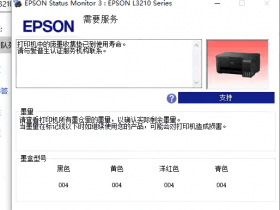
Epson R270 Printer is a popular inkjet printer that is widely used. But there may be situations when you need to reset your printer, such as when the printer runs into an error or when the ink counter has reached its limit. In this article, we will explain the step-by-step process of resetting an Epson R270 Printer in English Version.
Step 1: Download and Install SSC Service Utility
The first step in resetting your Epson R270 Printer is to download and install the SSC Service Utility software. You can download the software from various online sources. Make sure you download the English version.
Step 2: Launch SSC Service Utility
Once you have downloaded and installed the SSC Service Utility software, launch it. The software window will appear on your screen.
Step 3: Select Your Printer Model
In the SSC Service Utility window, under "Configuration" tab, select your printer model from the drop-down list. In this case, select "Epson R270".
Step 4: Click on "Reset Counters" Button
Once you have selected your printer model, go to the "SSC Service Utility" tab and click on the "Reset Counters" button. This will reset the ink counter of your Epson R270 Printer.
Step 5: Restart Your Printer
After resetting the ink counter, turn off your printer and unplug it from the power source. Wait for at least 5 minutes and then plug it back in. Turn on your printer. Your Epson R270 Printer is now reset.
Conclusion
Resetting an Epson R270 Printer is an easy process if you follow the steps correctly. With the help of the SSC Service Utility software, you can reset the ink counter of your printer and avoid costly repairs. Just make sure you download the English version of the SSC Service Utility software, and you are good to go. Remember to always follow the instructions carefully to avoid any damage to your printer.
- 在线微信客服
- 加13296588055 故障咨询
-

- 远程QQ客服
- 加QQ6268980 远程服务
-