- A+
Introduction
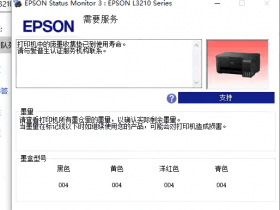
Epson R230 is a color Inkjet printer that is widely used by photographers and graphic designers for printing high-quality photos and graphics. However, after a certain period of usage, the printer starts displaying various errors and malfunctions, which can be frustrating for the users. One such error is the "Service Required" message, which indicates that your printer needs to be reset. In this article, we will discuss how to reset and clear the Epson R230 printer in English.
Step by Step Guide to Reset Epson R230 Printer
Resetting the Epson R230 printer will help clear the error and allow the printer to resume its regular printing function. Below are the steps to clear the Epson R230 printer:
Disconnect the printer's power cable from the electrical outlet and USB cable from the computer.
Press and hold the "power" button on the printer for about 20 seconds.
Reconnect the power cable and USB cable to the printer and computer.
Power on the printer and wait for it to heat up.
Once the printer is ready, press and hold the "maintenance" and "power" buttons simultaneously. As soon as the printer starts to clean the nozzles, release the buttons.
Wait for the printer to complete the cleaning process and then switch it off. Your printer has been reset and the "Service Required" message is cleared now.
Alternative method to Reset Epson R230 Printer
If the above method does not work for you, you can use the following alternative method to reset the Epson R230 Printer:
Download the "Epson Adjustment Program" on your computer.
Extract the files to your computer's desktop.
Switch on the Epson R230 Printer.
Go to the "Device Manager" option in your computer's Control Panel and locate the Epson R230 Printer. Right-click on the printer icon and select "Properties."
Select the "Port" tab in the printer's Properties window and take note of the "USB001" port number. Click on "OK."
Locate the "AdjProg.exe" file that you extracted earlier and double-click on it.
Select the "Particular adjustment mode" option from the menu and then click on "Waste Ink Pad Counter."
Select the "Initialize" option and then click on "OK."
Wait for the process to complete and then click on the "Finish" button. Your printer has been reset successfully now.
Conclusion
Clearing the Epson R230 printer is a simple task that can be done by following the above-stated methods. Ensure to follow the steps carefully to avoid any damage to the printer. It is always advisable to use genuine inks and components for printing purposes to avoid any malfunctioning in the printer. If the problem still persists, it is best to consult a professional to avoid any further damage to your printer.
- 在线微信客服
- 加13296588055 故障咨询
-

- 远程QQ客服
- 加QQ6268980 远程服务
-