- A+
Introduction
The Epson T50 printer is one of the most trusted and reliable printers in the market, known for its printing quality and performance. However, over time, errors and issues can arise, necessitating a reset of the printer. This article will guide you on how to reset your Epson T50 printer step-by-step, with accompanying illustrations.
Step 1: Turn off the Printer
The first step in resetting your Epson T50 printer is to ensure it is turned off. This can be done by pressing the power button and holding it down until the power light goes off. Once the printer is off, unplug its power cord from the power source.
Step 2: Press and Hold the Resume Button
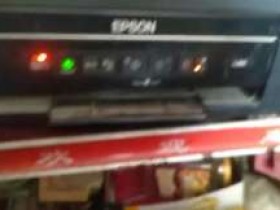
Next, press and hold the resume button on your Epson T50 printer for approximately 5-10 seconds. The resume button is usually found on the front panel of the printer, labeled with a red light. Holding this button down will activate the printer's maintenance mode.
Step 3: Release the Resume Button
Once the maintenance mode is activated, release the resume button. This will enable the printer to detect the software reset mode.
Step 4: Press the Power Button
After releasing the resume button, press the power button on your Epson T50 printer to activate it. This will prompt the printer to enter the reset mode, which can take a few seconds. You will know that the reset mode has been activated when the green light on the printer begins flashing.
Step 5: Wait for the Green Light to Stop Flashing
After entering the reset mode, your Epson T50 printer will begin resetting its internal components. This process can take a few seconds to a few minutes, depending on the specific printer model and its internal components. During this time, the green light on the printer will continue flashing. Wait until the light stops flashing before proceeding to the next step.
Step 6: Power off the Printer and Restart it
Once the green light stops flashing, power off your Epson T50 printer and unplug its power cord from the power source. Leave the printer in this state for a few minutes before plugging the power cord back in and turning on the printer. This will complete the reset process, and your printer should now operate normally.
Conclusion
In conclusion, resetting your Epson T50 printer is an essential process that can help fix any errors and issues the printer may be experiencing. Following the steps outlined in this article and the accompanying illustrations will ensure that you reset your printer safely and efficiently, enabling it to perform optimally once again.
- 在线微信客服
- 加13296588055 故障咨询
-

- 远程QQ客服
- 加QQ6268980 远程服务
-