- A+
Epson Resets Waste Ink Counters: An English Version
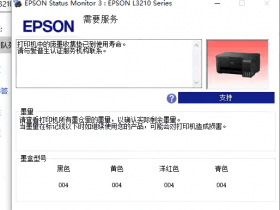
Are you an Epson printer user? If yes, then you might be facing the common problem of your printer showing an error message of "ink pads are at the end of its service life" or "waste ink counters overflow." It's frustrating, and you may think of buying a new printer. But, wait! There's a solution to this problem. Epson offers an easy way to reset waste ink counters. In this article, we will guide you on how to reset waste ink counters in your Epson printer.
Why do Waste Ink Counters Overflow?
Before we discuss how to reset the waste ink counters, it's essential to understand why this problem occurs. The Epson printer has several small sponge pads inside it that collect the waste ink during the printing process. These sponge pads have a limited capacity, and when they are full, the printer shows an error message regarding the overflow of waste ink counters. It's a warning sign from the printer that the sponge pads need to be replaced or reset to avoid any damage.
Steps to Reset Waste Ink Counters
Here's a step-by-step guide to reset waste ink counters in your Epson printer:
Download the "Epson Adjustment Program" from the official Epson website. It's a free tool that will help you to reset waste ink counters and other printer maintenance tasks.
Extract the downloaded file and run the "Adjprog.exe" file.
Select your printer model and port, and click on "Particular Adjustment Mode."
From the available options, select "Waste Ink Pad Counter" and click on "OK."
Check the "Main Pad Counter" and "Platen Pad Counter" checkboxes, and click on the "Check" button.
Click on the "Initialization" button and wait for the process to complete. It may take a few minutes.
After the process is completed, click on the "Finish" button, and turn off your printer. Wait for a few minutes, and turn it on again.
Now, check if the waste ink counter is reset or not. If yes, then you can continue using your printer without any error messages.
Conclusion
Resetting waste ink counters may seem daunting, but it's an easy process if you follow the steps carefully. Always download the "Epson Adjustment Program" from the official website, and avoid using any untrusted third-party software. It's essential to reset waste ink counters to avoid any damage to your printer and continue using it for a long time. We hope this article has helped you to understand the process of resetting waste ink counters in your Epson printer. Happy printing!
- 在线微信客服
- 加13296588055 故障咨询
-

- 远程QQ客服
- 加QQ6268980 远程服务
-