- A+
Epson R230 Reset in English: A Step-by-Step Guide
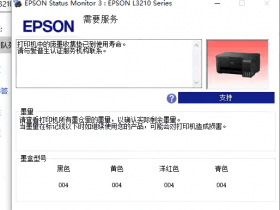
The Epson R230 printer is a well-known and popular model among many users. However, like any other printer, it may encounter some problems that require a reset. Resetting the printer can help resolve issues such as cartridge errors or printing problems. In this guide, we will show you how to reset your Epson R230 printer in English with step-by-step instructions.
Step 1: Obtain the Required Software
The first step in resetting your Epson R230 printer is to obtain the required software. You will need to download the "IPR Utility" from the Epson website. Ensure that you download the correct version of the software that is compatible with your operating system.
Step 2: Extract the Zip File
After downloading the software, locate the downloaded zip file and extract its contents to a folder on your computer. You will need this folder for the next step.
Step 3: Run the "IPR Utility"
With the folder containing the extracted files open, double-click on the "IPR Utility" file to run the program. The program will start and prompt you with a message to connect your printer.
Step 4: Connect the Printer
Connect your Epson R230 printer to your computer via a USB cable, and turn it on. Once the printer is connected, select the model number of your printer from the drop-down list on the software interface.
Step 5: Select "Waste Ink Pad Counter"
After selecting your printer model, click on the "Waste Ink Pad Counter" option. This option will display the estimated ink pad lifespan and the number of pages printed by the printer. Check the box next to "Main Pad Counter," which resets the ink pad counter, and then click on the "Check" button.
Step 6: Reset the Ink Pad Counter
If the ink pad counter is full, the software will display a message indicating the need for a reset. Click on the "Initialization" button to reset the ink pad counter. A message will be displayed confirming that the reset process is complete. Click on "Ok" to close the message box.
Step 7: Check the Printer Status
After resetting the printer, check the printer status by printing a test page. If the test page prints correctly, then the printer has been reset successfully.
Conclusion
Resetting your Epson R230 printer may seem intimidating at first, but with this step-by-step guide, the process becomes much smoother. By following these simple instructions, you can have your printer back to functioning correctly in no time.
- 在线微信客服
- 加13296588055 故障咨询
-

- 远程QQ客服
- 加QQ6268980 远程服务
-