- A+
Introduction
Resetting an Epson R330 printer can often help to troubleshoot issues such as ink system failures or communication errors. It's a relatively simple process that can be done quickly, but you'll need to follow some specific steps to ensure that everything is reset properly. This guide will walk you through the steps you need to take to reset your Epson R330 printer.
Step 1: Check your ink levels
Before resetting your printer, it's important to check your ink levels. If your ink levels are low, you may need to replace your cartridges before resetting your printer. To check your ink levels, go to your printer's control panel and find the menu for ink levels. This will show you how much ink you have left in each cartridge. If you need to replace cartridges, do so before proceeding to the next step.
Step 2: Perform a hard reset
The first step to reset your Epson R330 printer is to perform a hard reset. This will clear any errors or malfunctions that may be causing your printer to malfunction. To do a hard reset, turn off your printer and unplug it from the power source. Wait for a few minutes before plugging it back in and turning it on. This should clear any errors and reset your printer.
Step 3: Enter maintenance mode
The next step is to enter maintenance mode. To do this, hold the Resume button and press the Power button. Keep holding the Resume button until the Power button starts flashing. Then release the Resume button. Your printer should now be in maintenance mode.
Step 4: Reset the printer's waste ink counter
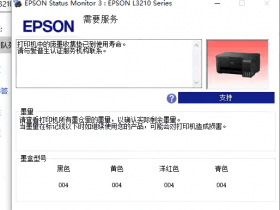
The final step to reset your Epson R330 printer is to reset the waste ink counter. This counter keeps track of the ink that your printer uses and when it gets full, your printer stops working. To reset the waste ink counter, you'll need to download and install a specialized tool called the Epson Adjustment Program. This program will reset the waste ink counter and allow you to continue using your printer.
Conclusion
Resetting your Epson R330 printer is a relatively easy process that can help you troubleshoot a variety of issues. Remember to check your ink levels before resetting your printer, perform a hard reset, enter maintenance mode, and then reset the waste ink counter with the Epson Adjustment Program. Following these steps should ensure that your printer is properly reset and ready to use.
- 在线微信客服
- 加13296588055 故障咨询
-

- 远程QQ客服
- 加QQ6268980 远程服务
-